Filtering Certs Received
Requires XMPT PRO or XMPT ENTERPRISE plan
Filter Panel Instructions
Use the filter panel to narrow results by certificate type, date, state, and export your selection to Excel.
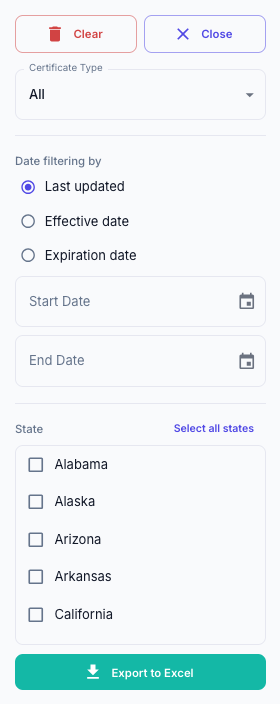
Certificate Type
Use the Certificate Type dropdown to control which certificates are included:
- All – Includes both uploaded and system-generated certificates.
- Uploaded – Includes only certificates provided directly by users.
- Generated – Includes only certificates created by the system.
The selected certificate type is applied before all other filters.
Date Filtering
Choose the date type
- Select one option:
- Last updated – Filters based on the most recent change to a record.
- Effective date – Filters based on when the certificate becomes valid.
- Expiration date – Filters based on when the certificate expires.
- Select one option:
Set a date range
- Click Start Date and select the beginning of your range.
- Click End Date and select the end of your range.
- You may use either date alone or both together to define a range.
Only records that match the selected date type and fall within the specified range will be included.
State Inclusion / Exclusion
Select states individually - Check the box next to each state you want to include.
Select all states - Click Select all states to include every state at once, and then uncheck specific states afterward to exclude them.
Results will include only records associated with the selected states.
Export to Excel
- Apply all desired filters (certificate type, date, and state).
- Click Export to Excel.
- An Excel file will download containing only the filtered results currently displayed.
Tip: Always confirm your filters before exporting to ensure the file reflects the exact data you need.